
Viral launch videos for moon-shot founders 🌸
Flowjam partners with AI founders and startups aiming for the moon, to create story-driven launch videos to build hype and show the world what they're building.

Full PortfolioBlog
Flowjam works with some of the most successful AI founders in the world after only launching in 2023.
Copyright 2026. Flowjam Ltd.
Copyright 2026. Flowjam Ltd.
App Store Preview Videos: The One Rule That Rules Out AI Footage
App Store preview videos must be 15 to 30 second screen captures of the app itself. AI can add narration, captions and translations, but not generated footage.

Apple's App Review Guideline 2.3.4 is one sentence long where it matters: "previews may only use video screen captures of the app itself."
That sentence rules out most of what AI video tools are built to make. Generated scenes, stock b-roll, a presenter avatar, a lifestyle montage of someone smiling at their phone: none of it belongs in an App Store preview.
The same guideline then opens a door. "You can add narration and video or textual overlays to help explain anything that isn't clear from the video alone." That is exactly where AI is good.
What AI can put in a preview, and what it can't
An App Store preview video is an optional 15 to 30 second clip that plays before your screenshots on the product page, and it has to be built from real recordings of your app's screen.
Apple's preview guidance spells out the line: "App previews must show only content within the app itself. Don't film people interacting with a device, such as an over-the-shoulder angle or fingers tapping the screen."
Google Play is looser. Its preview video rules take a YouTube link, and its guidance asks that the video focus on the real in-app experience, with at least 80% of it showing that experience.
| Element | App Store preview | Google Play video |
|---|---|---|
| Screen recording of the app | Required, and the only footage allowed | Should be at least 80% of the video |
| AI-generated scenes or b-roll | No | Only inside the other 20% |
| AI avatar presenter | No | Only inside the other 20% |
| Hands or a phone filmed in use | NoApple names this directly | Only inside the other 20% |
| AI voiceover narration | Yesnarration is allowed | Yes |
| Captions and text overlays | Yesand you need them | Yes |
Our rule for the grey area: AI can change what surrounds the screen recording, never what is inside it.
Cropping, speed ramps, zooms and captions are editing. Repainting a screen to show a feature you haven't shipped is a fake screenshot with motion, and a reviewer who installs the build will see the difference.
Decision rules for building one
- If your app's value shows up on screen in the first few seconds of use, screen-record that moment and open on it. Let AI write the captions and the voiceover around it.
- If the value happens off the screen, such as a delivery arriving or a device in a room, keep the preview in the app anyway and tell the real-world story in your Google Play video, on your website and in your product demo video.
- If you sell in more than one language, record once and make a version per language with translated overlays and an AI voice. Apple allows up to 3 previews per device size and language, and a language without its own preview falls back to the next best one.
- If your app has an AR feature, Apple asks you to use the first few seconds to show the virtual object being placed or manipulated, so people can tell virtual from real.
- If you only have budget for one preview, make it portrait at the largest iPhone size and let Apple scale it down.
Write for silence. Apple says plainly that "by default, app previews play with the sound muted", so the narration is a bonus for the few who unmute. The captions carry the story. Our AI subtitle generators roundup and the guide to adding AI voiceover cover the tools.
The specs that get previews bounced
Apple's app preview specifications are strict, and the most common failures are the ones AI tools cause by default, like 60 fps exports and odd resolutions.
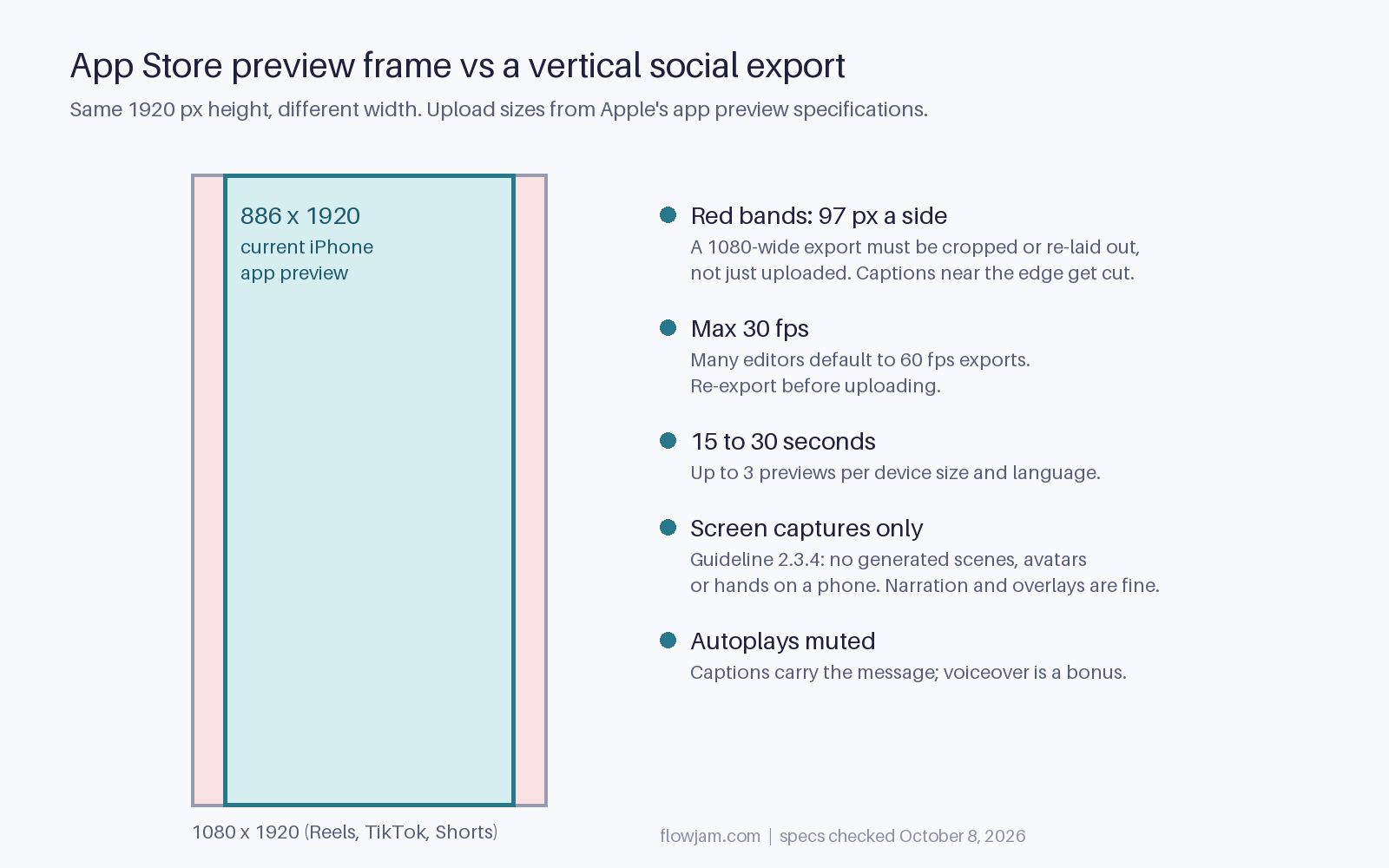
- Length: 15 seconds minimum, 30 seconds maximum.
- Frame rate: 30 fps maximum. Many editors export at 60, so check before you upload.
- Current iPhones: 886 x 1920 portrait or 1920 x 886 landscape. That is not 1080 x 1920, so a vertical social export will not drop straight in.
- iPads from 10.5 to 13 inches: 1200 x 1600 portrait or 1600 x 1200 landscape.
- Files: .mov, .m4v or .mp4 in H.264 at a 10 to 12 Mbps target, or ProRes 422 HQ in .mov, up to 500 MB.
- Audio: stereo, 256 kbps AAC at 44.1 or 48 kHz for H.264.
- Processing: up to 24 hours after upload, so don't leave it until launch day.
For a clean capture, record from the iOS Simulator with xcrun simctl io booted recordVideo, or from a real device through QuickTime on a Mac. Turn on demo-friendly data first, because an empty inbox or a test account named "asdf" will be on your product page for months.
Google Play's side is simpler. Use a single YouTube video URL, not a playlist, set it public or unlisted, turn off ads and monetization, and don't let it be age-restricted. Only the first 30 seconds autoplay, so the same 30-second cut can serve both stores if it passes Apple's rules.
If you are also cutting ads from the same footage, our video ad specs guide covers the 9:16, 4:5 and 16:9 exports, and the guide to making AI videos covers the rest of the workflow.
The frame most people never see moving
If someone has turned off autoplay in their App Store settings, they see a still poster frame instead of the video. Apple defaults it to the 5-second mark.
Five seconds into most previews is a transition or half a caption. Pick the frame yourself, and make it one that explains the app with no motion at all.
Choose it before you submit. Apple's guidance says that changing the poster frame on a preview that's already approved means submitting a new version of the preview.
The preview is also the one launch video you can't make with generative footage, which is why we build the store cut from real captures and save the cinematic version for the Flowjam launch film that runs everywhere else.
AP
About the author
Adam Petty
Founder, Flowjam
Adam is the founder of Flowjam, where he helps startups turn ideas into launch videos, product demos, and ads with AI video. He writes about AI video production, creative workflows, and go-to-market for early-stage teams.
Frequently asked questions
Can I use AI-generated video in an App Store preview?
No. Apple's App Review Guideline 2.3.4 says previews may only use video screen captures of the app itself. You can add narration and video or text overlays, so AI voiceover, captions and translated text are fine, but generated scenes, avatars and stock footage are not.
How long can an App Store preview video be?
Between 15 and 30 seconds. Apple allows up to 3 previews per device size and language, at a maximum of 30 frames per second and 500 MB per file.
What resolution is an App Store preview for iPhone?
For current iPhones, Apple accepts 886 x 1920 portrait or 1920 x 886 landscape. Older Home-button Plus models take 1080 x 1920. iPads from 10.5 to 13 inches take 1200 x 1600 portrait or 1600 x 1200 landscape.
Do App Store previews play with sound?
Not by default. Apple says app previews play with the sound muted, so captions and text overlays should carry the story and narration should only add to it.
What are the Google Play preview video requirements?
Add a single YouTube video URL, set to public or unlisted, with ads and monetization turned off and no age restriction. Only the first 30 seconds autoplay, and Google's guidance asks that the video focus on the real in-app experience.




Launch videos for
moon-shot founders.

About
We're a video production studio partnering with AI founders and startups. We make launch videos to show the world what you're building.
London / San Francisco
Made with love from London / San Francisco. Collaborating with clients worldwide.
Contact
Adam Petty
Founder
adam@flowjam.com
Founder
adam@flowjam.com